


 Translate
Vigiles Prime Tutorial: Part 2 – Triaging, Remediating and How to Get the Outcome You Want

Triaging Vulnerabilities So You Can Prioritize What to Fix
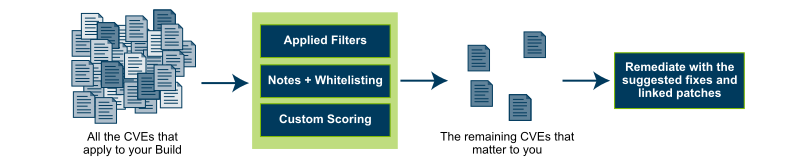
Vigiles already reduced most of your work by only showing vulnerabilities that apply to your build. The next step is to identify the CVEs that you want to fix or that you want to ignore by actively whitelisting.
Once your software bill of materials is scanned and your report is generated, you can filter the CVEs based on several metrics: package affected, patch or fix availability, CVE severity, custom scoring, affected platforms, whether or not you added notes or comments, and kernel and U-Boot configuration options. If you can’t find a filter that works in your triage, let us know, and we’ll look into adding it.

Filters
Use the filters in the CVE section of the report to focus on the CVEs that your organization wants to address. Try to use the kernel and U-Boot config filtering to leverage the nature of your custom build.

Add Notes
You may want to document your triage decisions in the notes. Depending on your regulatory requirements, this might be a necessary step. Keep in mind that notes on a given CVE are stored at the product level in Vigiles. All other manifests in the same product will share the same CVE note.
Whitelist
A CVE might not apply to your system (a false positive) or not be important. Whitelisting will change the CVE status to Whitelist, allowing you to focus on Unfixed CVEs. The whitelist settings are also stored at the product level and are shared across all manifests within a given product.
Custom Scoring
You can use internal or organizational metrics for CVEs and store the value here.
Team Collaboration
Manifests can be shared, enabling other team members to add notes to CVEs and to whitelist them.
Jira Integration
Vigiles can be connected to Jira so you can create an issue from within the Vigiles report interface and link it to a product manifest. You can add and delete tasks in Jira for CVE entries in your product’s Vigiles reports, as well as create and delete issues for packages.
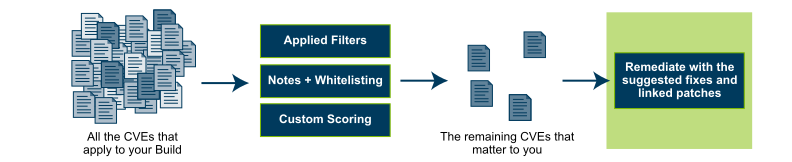
Suggested fix for OSS CVE remediation
Identifies a version of software where the CVE is fixed and/or provides links to user space patches where available
Minimum kernel version with a fix for a kernel CVE
Identification of the minimum version of a kernel with the CVE fix
Reference links to available patches, remediation, and exploits
Links to the available patch, workarounds for remediation when a patch is not available, and for recreating the CVE exploit for testing
Link to mainline kernel fix commit for Linux kernel CVEs
A direct link to the CVE fix in the mainline kernel

Upload an updated manifest
After you’ve made kernel fixes, upload an updated manifest so you can continue tracking and compare reports.
Set Up Notification
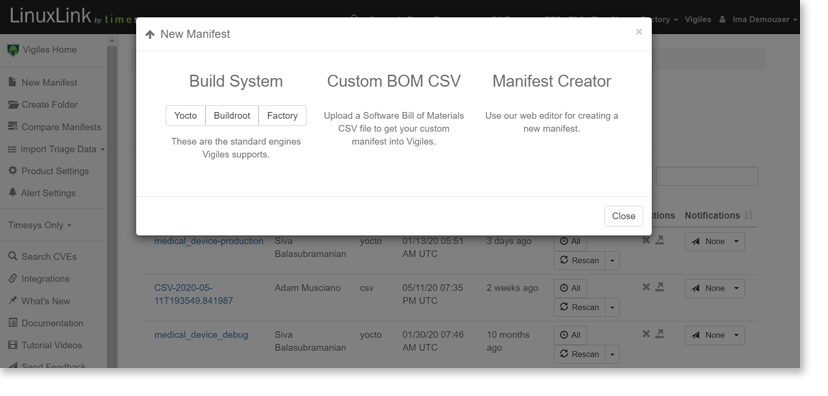
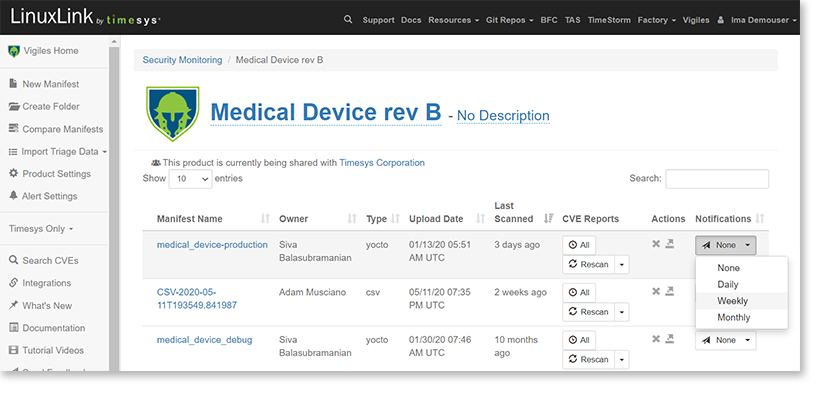
Now that you’ve uploaded and scanned your SBOM/manifest for vulnerabilities, you can set up automatic notification of new alerts affecting your product software at your preferred cadence. You can choose to receive notification daily, weekly or monthly.
Set Up Alerts
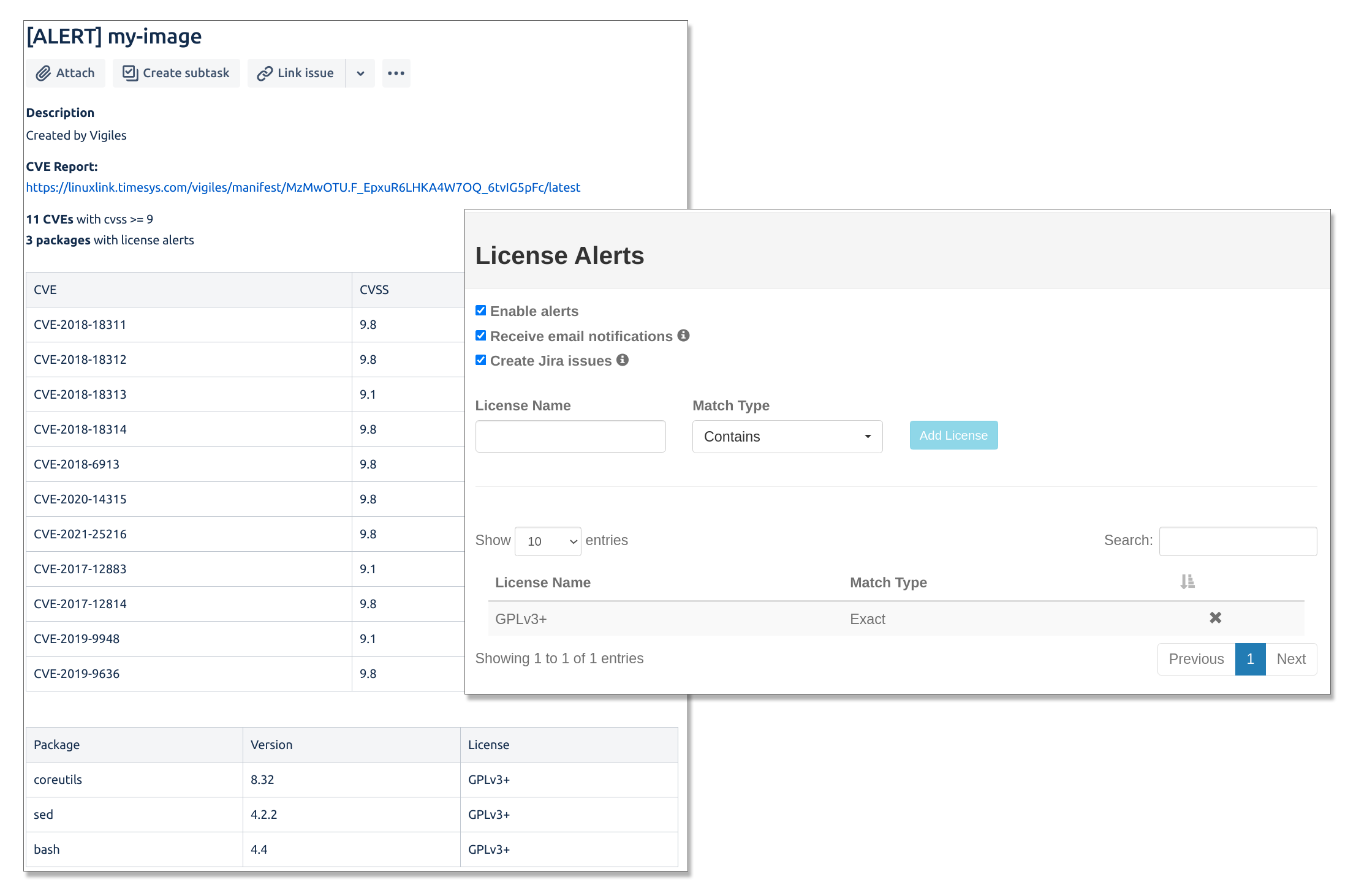
With Vigiles, you can set up automatic alerts for non-authorized license type and for CVEs exceeding CVSS score threshold.
You can choose to receive notification of CVSS and License alerts via email or to have an issue created in Jira.

IN CASE YOU MISSED IT:
Getting a Software Bill of Material (SBOM)/Manifest into your account, Scanning for CVEs, and Reading and Interpreting the Scans
If you haven’t viewed Part 1 of your Vigiles Prime walk-through, you can catch up what you’ve missed at https://timesys.com/part1-vigiles-core-features/.
Get a feature walk-through that focuses on your use case.
Want to see a demo or specific features? Or discuss your use case to get a focused idea of where Vigiles fits into your workflow?
Fill out the form to schedule a complimentary 30-minute Vigiles Quick Start consultation. We’ll be happy to help answer your questions.
* Denotes required field.
Additional Resources

Copyright © 2018-2021 Timesys Corporation. All Rights Reserved. Privacy Policy | Cookie Policy | Support Policy | Eula | Terms of Service | Terms of Sale 


All company and product names mentioned and marks and logos used are trademarks and/or registered trademarks of their respective owners.